Olly chat
The Olly chat is your primary interface for interacting with Olly. Ask questions in natural language, browse prompt templates, and explore structured artifacts, all within a single conversation view.
Olly applies a curated set of specialized skills to each request, the same pattern modern AI agents use to tackle complex tasks. The chat is tuned to handle anything from a quick lookup to a deep investigation, so you don't need to pick a mode before sending a prompt.
For how to phrase questions, give Olly the right context, and check its answers, see Olly best practices.
Start a new chat
When you open a new chat, Olly greets you with a personalized home screen showing prompt template cards. Each card displays a title, a preview of the prompt, and a category tag (for example, Infrastructure, Incidents, APM). Use the arrow buttons to browse more templates, or type your own question in the input bar.
Manage conversations
Every conversation with Olly is saved automatically. Select the chat title at the top of the page to open a dropdown with your recent chats. From there you can search for a chat or select one to continue where you left off.
Select View all at the bottom of the dropdown to open the full Chats page. From the Chats page you can search, browse, and manage all your conversations. Hover over a chat and select the menu to:
- Rename: Give the conversation a descriptive name so you can find it later.
- Delete: Remove a conversation you no longer need.
Use Multi select to rename or delete multiple conversations at once.
Chat actions
The following actions are available on messages in the chat:
- Share: Share a conversation with only yourself, your whole team, or specific teammates. See Share a conversation.
- Edit a message: Edit your message to Olly after you send it by selecting the edit icon next to it. Olly re-generates its response based on the updated message.
- Copy: Copy Olly's response to the clipboard.
- Retry: Re-generate Olly's response for a given message.
- Feedback: Rate Olly's response with a thumbs up or thumbs down to help improve answer quality.
- Stop: Select the stop button while Olly is generating a response to cancel it.
Share a conversation
Select Share to open the Select who has access panel, then choose who can open the share link:
- Private: Only you, the author, can view the conversation.
- Shared: Team members can view the conversation. Selecting Shared reveals a member picker and the share link.
When you select Shared, use the member picker to set who the link works for:
- Leave the picker empty (Everyone in the team) to share with anyone on your team who has the link.
- Search for and select one or more teammates to limit access to only those people. Each teammate is listed by name and email.
Select Save and copy link to apply your choice and copy the link to your clipboard. For a Private conversation, the button reads Save, since there is no link to share.
The member picker lists only the teammates who are eligible to receive shared conversations, based on their Coralogix permissions.
Input bar features
The input bar at the bottom of the chat provides access to:
- Model selection: Pick the AI model Olly uses for your prompts, GPT, Claude, or Gemini.
- Effort: Set how deeply the model reasons before answering, from fast, lightweight responses to deeper analysis. Available on models that support a reasoning control.
- GitHub repository: Select the + icon, then Select repo to add a repository as code context. The selected repository appears next to the + icon. Select repo appears after you connect your GitHub account on the Connectors page.
- Connectors: Select the + icon, then Connectors to see your connected tools and turn each one on or off for Olly. Manage connectors opens the Connectors page.
- File attachments: Upload files from your device to give Olly additional context for your prompt.
- Skills: Type
/in the prompt for an autocomplete picker of your skills and built-in skills, or select the + icon, then Skills to browse the same list. Manage skills opens the Skills page. One built-in skill,/scheduled-tasks, lets you create and manage scheduled tasks from chat.
Page and data context
Olly investigates your prompts in the context of where you opened the chat. Two kinds of context appear as removable chips above the prompt input:
- Page context: Olly picks this up automatically from the page you opened the chat on. The chip is labelled with the surface name and the suffix Page (for example, Explore Page), and its tooltip reads Olly uses this page query, time range, and filters as context.
- Data context: specific objects you pin yourself, for example, a log, a span, a metric chart, or a dashboard widget. Pinned objects are grouped by type: each type you have pinned shows as one chip (for example, a Logs chip or a Spans chip) with a count of how many objects it holds. Hover a chip to see the individual objects it groups. When you pin more types than fit above the prompt, the extra chips collapse into a +N chip. Select it to open the More context list.
Add an object as data context
Select Add to Olly context to pin the object you're looking at as a data-context chip; select the control again to unpin it. For the full list of surfaces that expose the control, see Add an object as data context.
Tag an object from the prompt
You can also pin an object without leaving the chat. Type @ in the prompt for a picker of matching Coralogix objects, grouped by type. Keep typing to filter the list by name, then select a result. If nothing matches, the picker shows No matching results.
The object you tag appears as a mention in the prompt and as a data-context chip above it (the same chip you get from Add to Olly context) and Olly attaches it without opening a drawer. You can tag these object types:
- Services
- Dashboards
- Dashboard widgets
- Alerts
- Cases
- Metrics
- AI applications
- Evaluations
You see only the types you have permission to view. To untag an object, remove its mention from the prompt.
Remove a chip or clear data context
- Remove one type: hover a data-context chip and select the close icon to unpin every object of that type at once. Its tooltip reads Remove data context: <label>. Removing a data-context chip leaves the page-context chip in place.
- Clear on send: data-context chips clear automatically when you send the prompt, so each message starts from a clean set of objects. The page-context chip stays attached across messages.
- Clear without sending: start a new chat to drop every data-context chip at once.
Open a page from the chat
Ask Olly to take you somewhere in Coralogix and it opens that page for you, so you can read an answer and then move to where you can dig into it without leaving the conversation. Ask in plain language:
- "Open the Logs explorer."
- "Take me to my dashboards."
- "Go to the alerts page."
This works from the Olly page and from the Olly side drawer on any screen, and the chat stays with you as Olly moves between pages. Where carrying out your request also needs work on the page it opens, Olly takes you there and continues once the page has loaded.
Olly opens only the pages your account can reach, because it inherits your permissions like every other Olly action.
Thinking process
When you send a prompt, Olly's investigation appears live in the chat. The panel opens with a pulsing Olly logo and a short status message (Olly cycles through labels like Thinking, Connecting the dots, and Digging deeper as it works) then fills with the steps it's taking, such as loading a skill, running a query, or fetching sample records. Each step is shown the moment it starts and timed independently. Once Olly finishes, the panel collapses to a summary of the run (for example, Thought a bit, used 5 tools) that you can expand at any time to review every step.
The active step shows its content directly under the panel while it runs: Olly's reasoning, any tool details, and the artifacts it has produced so far. Expand any step to see the same content in place after Olly has moved on.
Charts and tables created during thinking sit inside the step where Olly produced them. When Olly finishes, the final answer's charts and tables move into the response body, so you can scroll through the result without reopening the panel.
Working with large result sets
A chat reply can only hold so much data, which used to put a ceiling on the questions worth asking. Olly now saves large query results, whether logs, spans, or metrics, to a file in its conversation workspace and works through them there with tools such as grep, jq, awk, and python, keeping only the lines that matter.
This changes what you can ask for:
- Bigger questions: Olly handles far larger result sets, because it reads the lines it needs rather than loading every record into the conversation.
- Analysis over everything: Olly runs its own scripts on the full result set, not only on the portion that fits in its context.
- Correlation at scale: Olly can line up large datasets across logs, metrics, and traces in a single pass, rather than comparing summaries of each.
- Calculated figures: numbers come from code Olly ran over the data, not from estimates. Ask it to show the query or the calculation behind any figure it reports.
- Real deliverables: the same workspace is where Olly writes the files and reports described in Artifacts.
You do not switch anything on or ask for this directly. Olly moves to a file when the result is large enough to need it, and the steps appear in the thinking panel like any others.
Workspaces are available in all regions except US3, and are not available in BYOC environments.
Learn more about the reasoning behind this approach in Olly's sandbox workspace.
Artifacts
When Olly retrieves or generates structured data as part of a response, it displays the results as inline artifact previews within the chat message. Artifacts provide a richer view of the data than plain text.
Olly supports the following artifact types:
- Logs: A table of matching log entries.
- Spans: A Gantt view of the full trace containing the span.
- Metrics: A chart showing returned metric values and labels.
- Charts: Visualizations generated from query results (line, bar, pie, and other chart types).
- Tables: Structured tabular data with column toggling and export.
- Code: Syntax-highlighted code snippets.
- Diagrams: Flowcharts and other Mermaid diagrams, for findings whose shape is easier to read as a picture.
- Files: A file Olly wrote for you, shown as a card with its name and size, and a control to download it.
Each artifact preview is collapsible. Select the expand icon on an artifact to open it in a full-size drawer for closer inspection. Artifacts are also accessible by URL, so you can link directly to a specific artifact from outside the chat.
Diagrams
Ask Olly to draw something and it renders a Mermaid diagram in the conversation, which you can expand for a closer look. Diagrams suit a request path across services, the order of events during an incident, or a dependency map that takes several paragraphs to describe in prose.
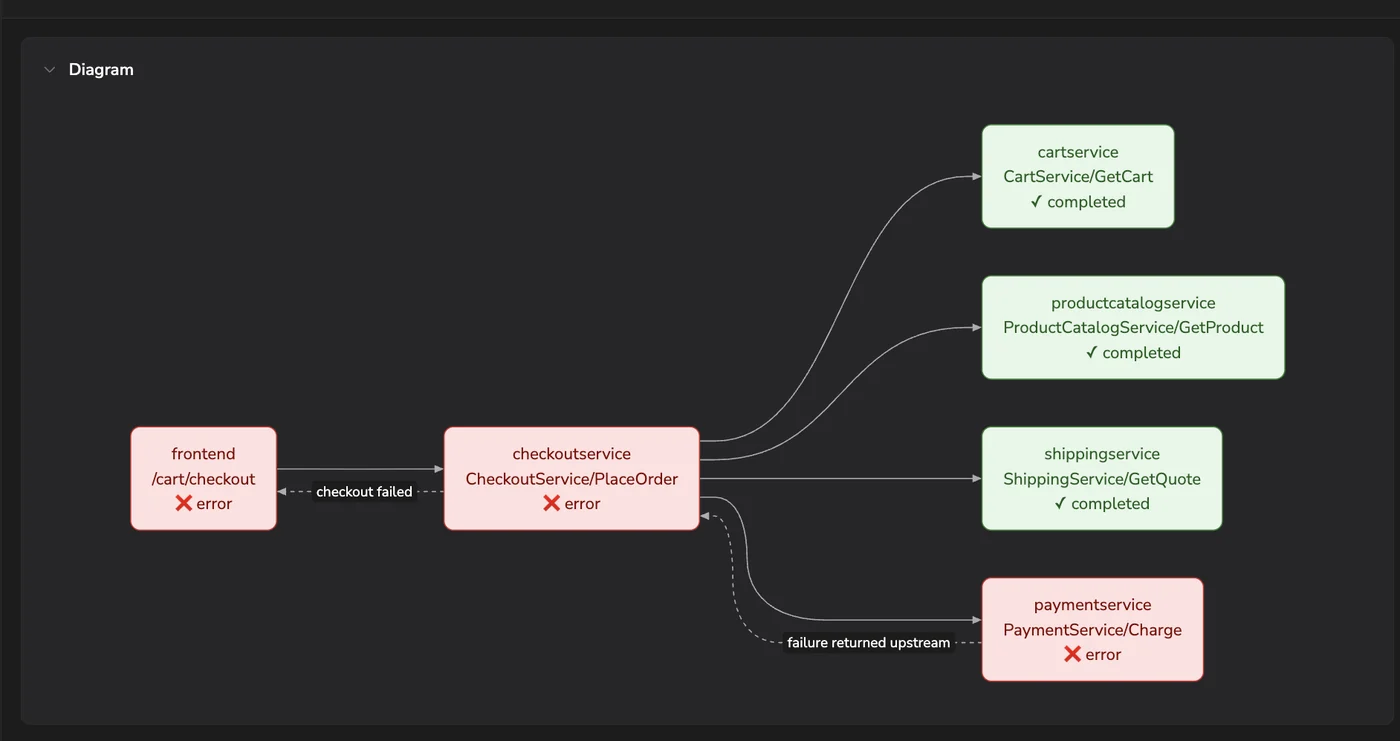
Olly draws a diagram when you ask for one. If a reply describes a flow in prose and a picture would read better, ask Olly to draw it instead.
Files you can download
When you ask for an export or a write-up, Olly creates the file in its conversation workspace and attaches it to its reply. Select the download control on the card to save it. For example, ask:
- "Export these results as a CSV"
- "Create a JSON file with this data"
- "Generate a PDF report from this investigation"
- "Create a downloadable summary of the findings"
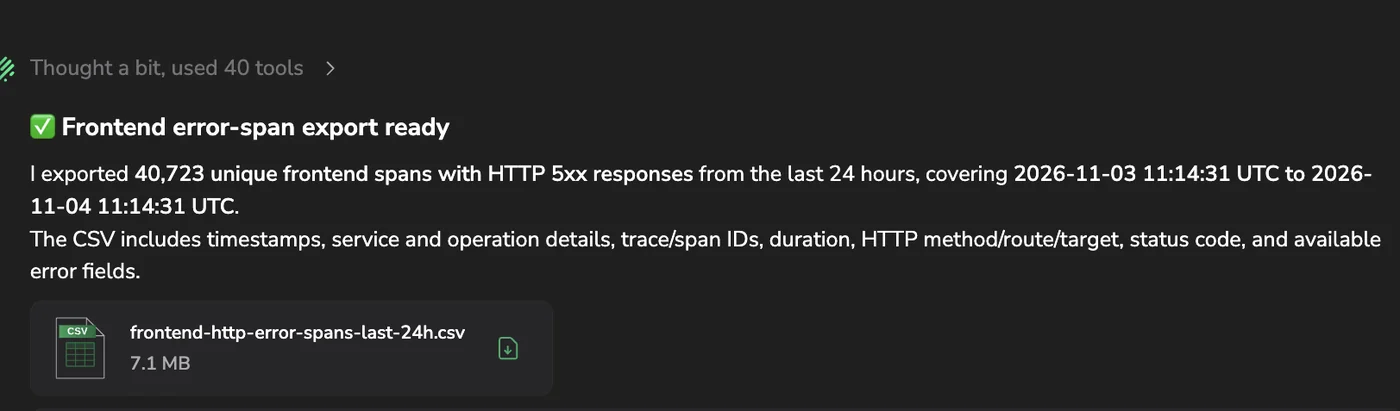
Olly can produce CSV, JSON, Markdown, HTML, PDF, and other file types. Generated files are saved as Olly artifacts and stay with the conversation, so you can download them again later from the same chat.
When the data already appears in the reply as an artifact, such as a table of logs or query results, Olly does not create a second file for it. Expand that artifact and download it from there.
Ask Olly to change a file it already produced and it revises that same file rather than creating a second copy, so you are not left working out which of two downloads is current.
Because Olly analyzes the full result set in its conversation workspace rather than a sample, an export covers everything the query matched.
HTML reports
Ask for a report rather than an export and Olly writes an HTML document: a page with headings, tables, and the figures it calculated, which opens in any browser. Use it for the write-up you owe someone after an incident, a weekly reliability digest, or a coverage review you want to hand to the team.
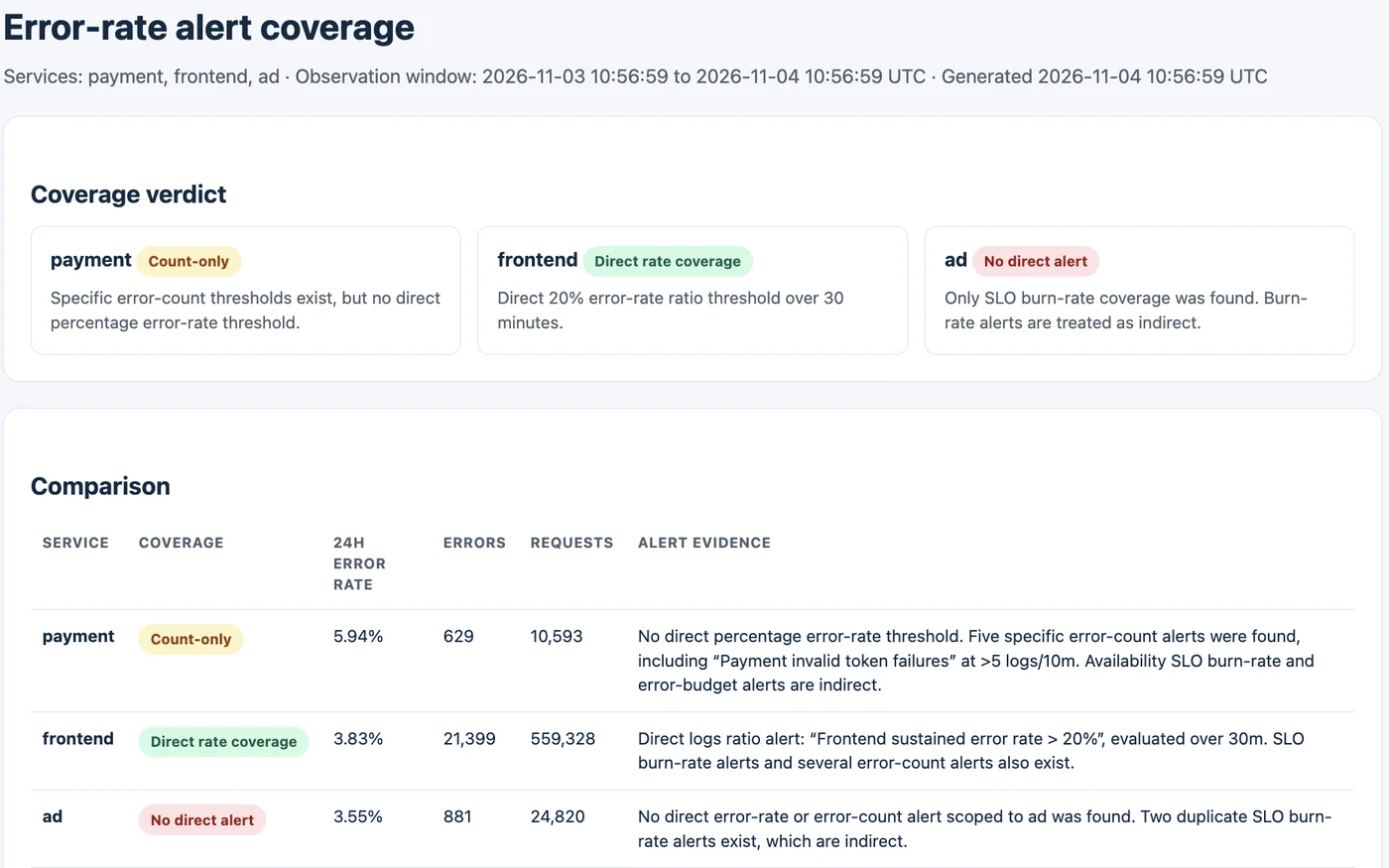
An HTML report travels better than a chat transcript. The person reading it does not need access to the conversation, or to Olly, to follow what the numbers are and where they came from.
Say what the report should contain, and Olly structures it from that. A request such as "which services have no error-rate alert, cross-checked against their actual error rate, as an HTML report with a table and a short summary" produces the sections, the comparison table, and the summary in one file. Ask for a section to be added, reworded, or dropped, and Olly revises the same file.
Open an artifact in Explore
Logs, spans, and metrics artifacts include an Open in Explore button, both on the inline preview and in the expanded drawer. Select it to open the artifact's query in the matching Explore view (logs, spans, or metrics) with the query and dataset carried over. From there you can refine the query, adjust the time range, and use the full Explore toolset to continue the investigation.
Next steps
Pick the AI model that best fits your task in Model selection.