Team highlights
A linked widget is a read-only reference to a widget on another dashboard that stays in sync with its source. Team highlights let your team curate the linked widgets it considers essential, so teammates find standard visualizations quickly and reuse approved widgets across dashboards.
A highlight belongs to your team, not to a dashboard. Saving or reverting a dashboard does not by itself add or remove highlights, and any team member who can view the source dashboard sees its highlights. A highlight is attached to the widget on its source dashboard, so deleting that widget, or deleting or archiving the dashboard itself, removes the highlight. Restoring an archived dashboard does not bring its highlights back, so highlight those widgets again.
What you need
- The
DASHBOARDS-HIGHLIGHTS:MANAGEpermission, plus update access to the dashboard that contains the widget - A widget that is saved on its dashboard. The option does not appear for a widget you just added or cloned until you save the dashboard.
You can't highlight a linked widget. Highlight the original widget on its source dashboard instead.
Add a widget to team highlights
- On the dashboard, hover over the widget.
- Select the more actions menu.
- Select Add to team highlights.
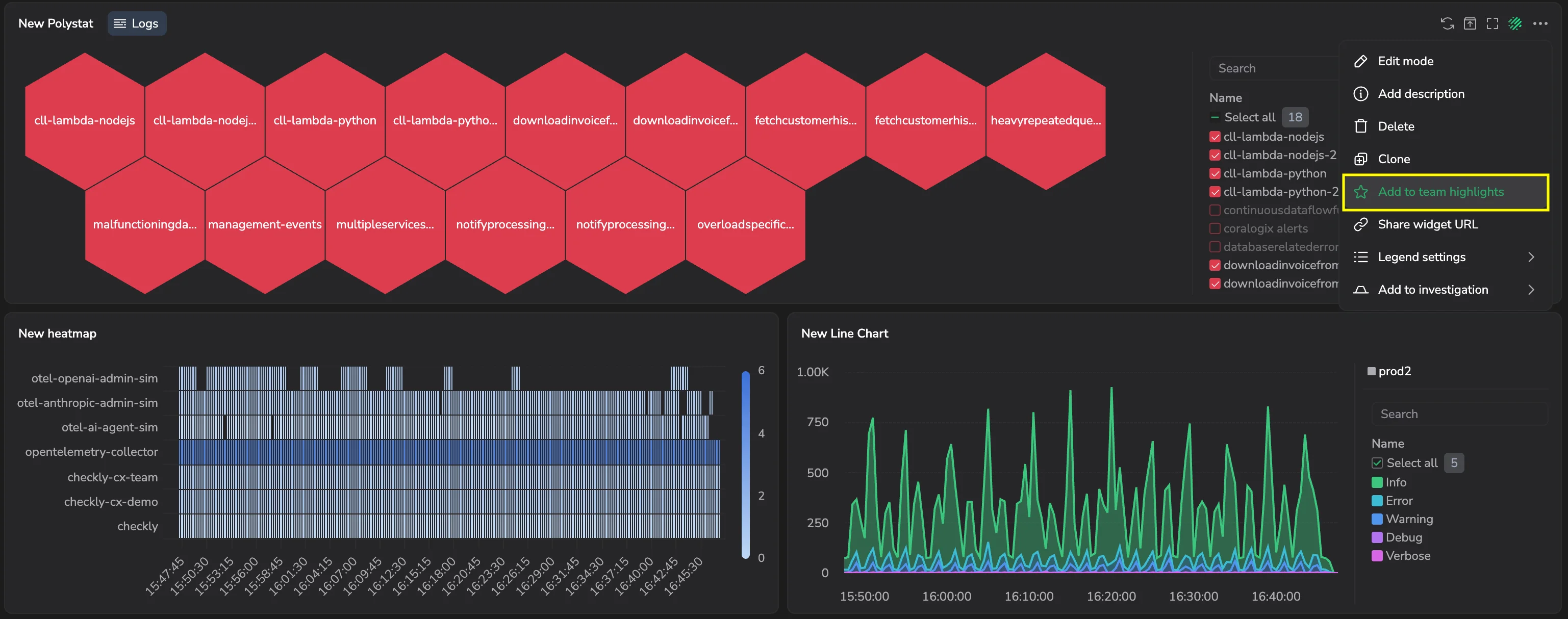
A confirmation appears, and the widget shows a Team highlight chip in its header. The widget appears in the Team highlights section of the Widgets library for everyone on your team.
Remove a widget from team highlights
- On the dashboard, hover over the widget.
- Select the more actions menu.
- Select Remove from team highlights.
The Team highlight chip disappears, and the widget is removed from the Team highlights section of the Widgets library.
Use team highlights in the Widgets library
Open the Widgets library from any Custom Dashboard.
The Team highlights section appears above the Linked widgets section, with the most-reused widgets first. It shows up to six widgets. If your team has highlighted more, select Show all to see every highlight, and Show less to collapse the list again.
To reuse a highlighted widget, drag its card onto your dashboard. It's added as a linked widget. You can't drag a highlight that is already on the dashboard you're editing.
To act on a highlighted widget, hover over its card and select the more actions menu. You can:
- Go to original dashboard to open the dashboard that contains the original widget
- Remove from team highlights to remove the highlight
Removing a highlight here has the same effect as removing it from the dashboard: the Team highlight chip disappears and the widget leaves the Team highlights section for everyone on your team.
Troubleshooting
I can't highlight a widget
There are several reasons why you might not be able to highlight a widget:
- A widget can only be highlighted on its source dashboard.
- A widget cannot be highlighted until the dashboard is saved.
- You lack the necessary permissions.